Before you start
To access your clinic panel you need three pieces of information provided by your administrator:
- Your clinic URL — it has the format davoxly.com/app/your-clinic-name
- Email address — the email you registered with
- Password — the password assigned to your account
Tip
If you don't remember your URL, check the welcome email you received when you signed up. You can also contact support at support@davoxly.com.
Step 1 — Go to your clinic URL
Open your web browser (Chrome, Firefox, Safari…) and type your clinic URL in the address bar. For example:
https://davoxly.com/app/your-clinic-name

Step 2 — Sign in
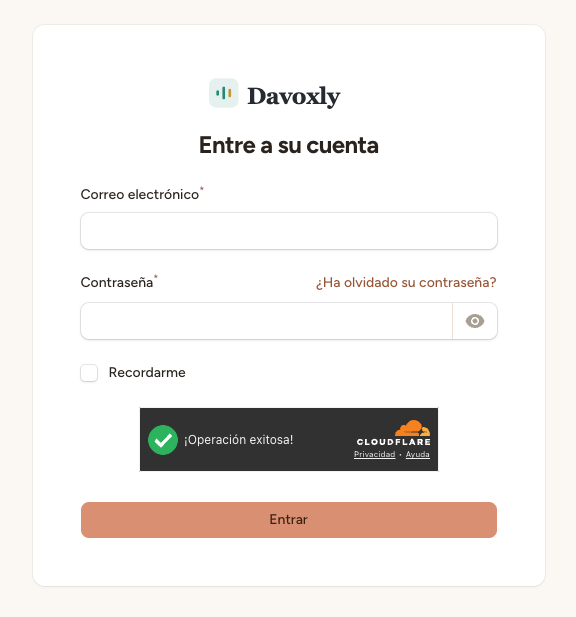
You'll see the sign-in screen. Enter your email address and password in the corresponding fields and click the "Sign in" button.
Step 3 — Your first view
After signing in you'll land on the Dashboard. Here you'll see at a glance:
- Stats — today's appointments, this week's, pending, and AI calls
- Today's appointments — quick list with patient, professional, service, and time
- Side menu — direct access to all sections: Appointments, Patients, Professionals, etc.
You're in! From here you can manage all your clinic's activity.
← Back to Help Center