Step 1 — Go to the Professionals section
Open your clinic panel and click «Profesionales» in the side menu. Then click the «Nuevo Profesional» button in the top-right corner.
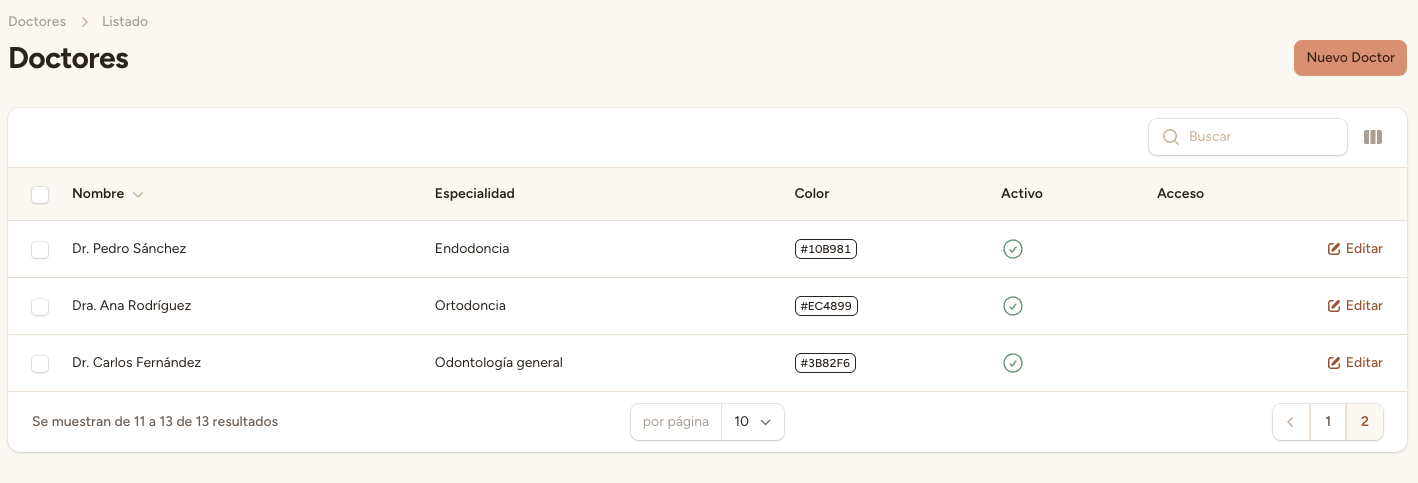
Step 2 — Fill in the professional's details
Fill in the professional's details:
Full name with title — For example, «Dr. Carlos Fernández» or «Dra. Ana Rodríguez».
Specialty — For example, «General dentistry», «Orthodontics», «Endodontics».
Phone and email — Professional's contact details (optional but recommended).
Calendar color — Choose a color in hexadecimal format (for example, #3B82F6). This color will be used to identify the professional's appointments on the calendar.
The color you choose will appear as the background for that professional's appointments in the calendar view. Use different colors for each professional so you can tell them apart at a glance.
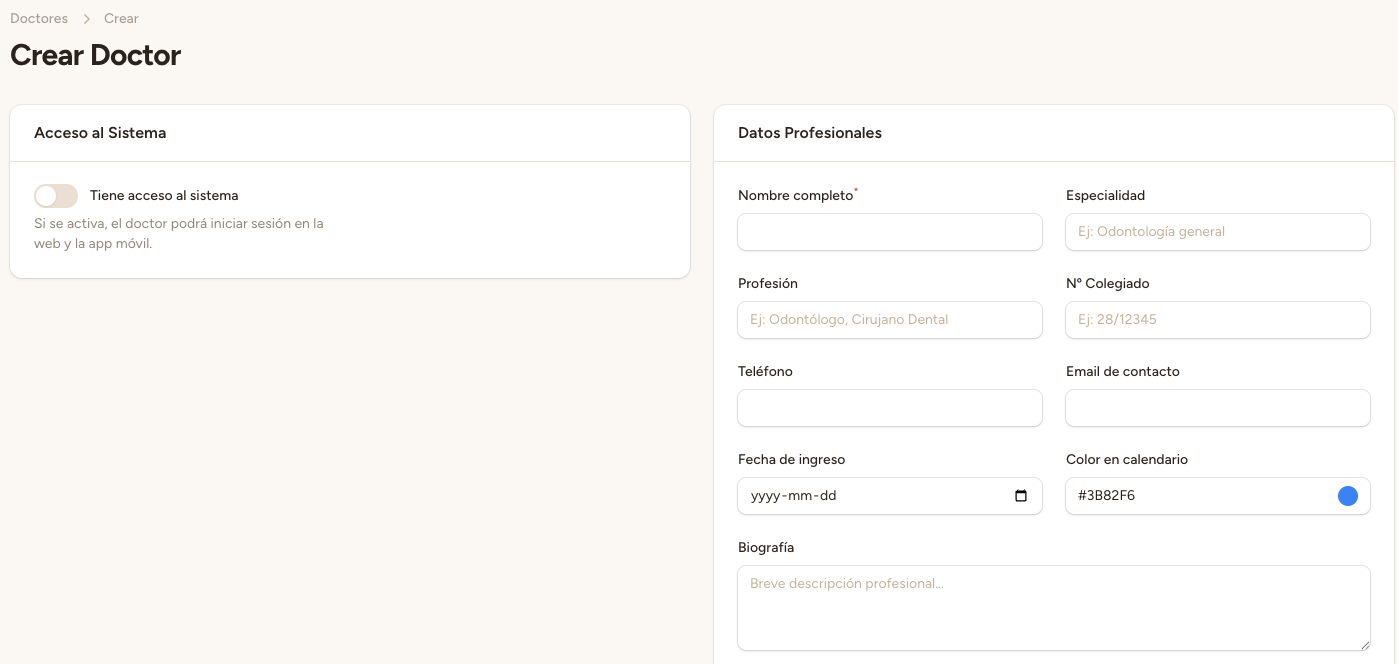
Step 3 — Assign services to the professional
In the professional's edit form, find the «Servicios» section and check the services this professional can perform. For example: Dental cleaning, Filling, General checkup.
Assigning services correctly is essential. The AI assistant uses this information to know which professional can perform each service when booking an appointment by phone. If a professional has no services assigned, the AI will not be able to assign appointments to them.
Step 4 — Save
Click «Guardar» to create the professional. The system will automatically update the AI prompt to include the new professional and their services.