Appointment statuses
Each appointment can be in one of the following statuses:
- Pending — the appointment has been created but hasn't been confirmed yet.
- Confirmed — the appointment has been confirmed and is ready for the scheduled date.
- In progress — the patient is being seen right now.
- Completed — the appointment has finished successfully.
- Cancelled — the appointment has been cancelled and the slot is now free.
- No show — the patient did not show up for the appointment.
The typical flow is: Pending → Confirmed → In progress → Completed. You can also cancel or mark as "No show" at any time before completing.
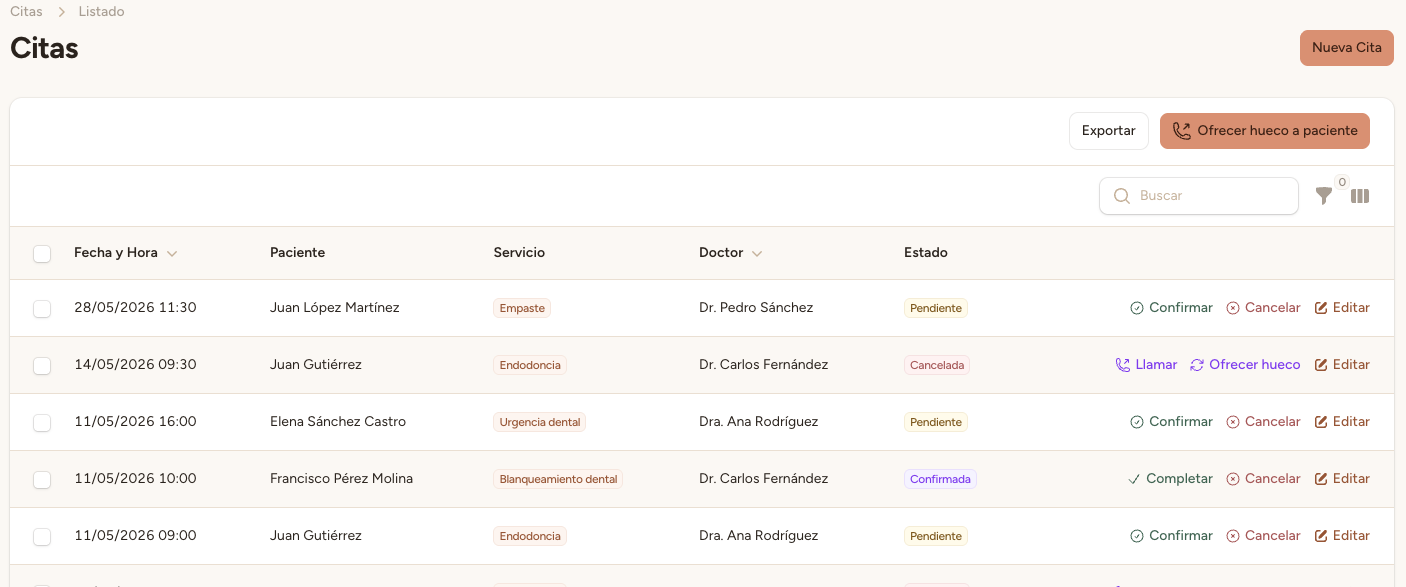
Step 1 — Find the appointment
Go to Appointments in the side menu. You can use the status filters at the top (Pending, Confirmed, etc.) to quickly find the type of appointment you're looking for. You can also scroll through the paginated list.
Step 2 — Change the status
Click on the appointment to open its detail view. You'll see action buttons at the top, which change based on the current status:
If Pending: "Confirm"
If Confirmed: "Start"
If In progress: "Complete"
Any status (not cancelled): "Cancel"

Step 3 — Confirm the change
When you press an action button you'll be asked to confirm (especially when cancelling). Review that it's the correct action and confirm. The status will update instantly and you'll see the change reflected in the detail view and the list.
Warning
Cancelled appointments cannot be undone. If you cancel an appointment by mistake, you'll need to create a new one. Think twice before cancelling.