Connect Stripe
To collect payments online you need to connect your Stripe account. Go to <strong>Settings → Payments</strong> and click «Connect with Stripe». Stripe Connect onboarding opens, where you enter your business details and bank account.
Payments are made <strong>directly on your Stripe account</strong>: Davoxly does not hold the money.
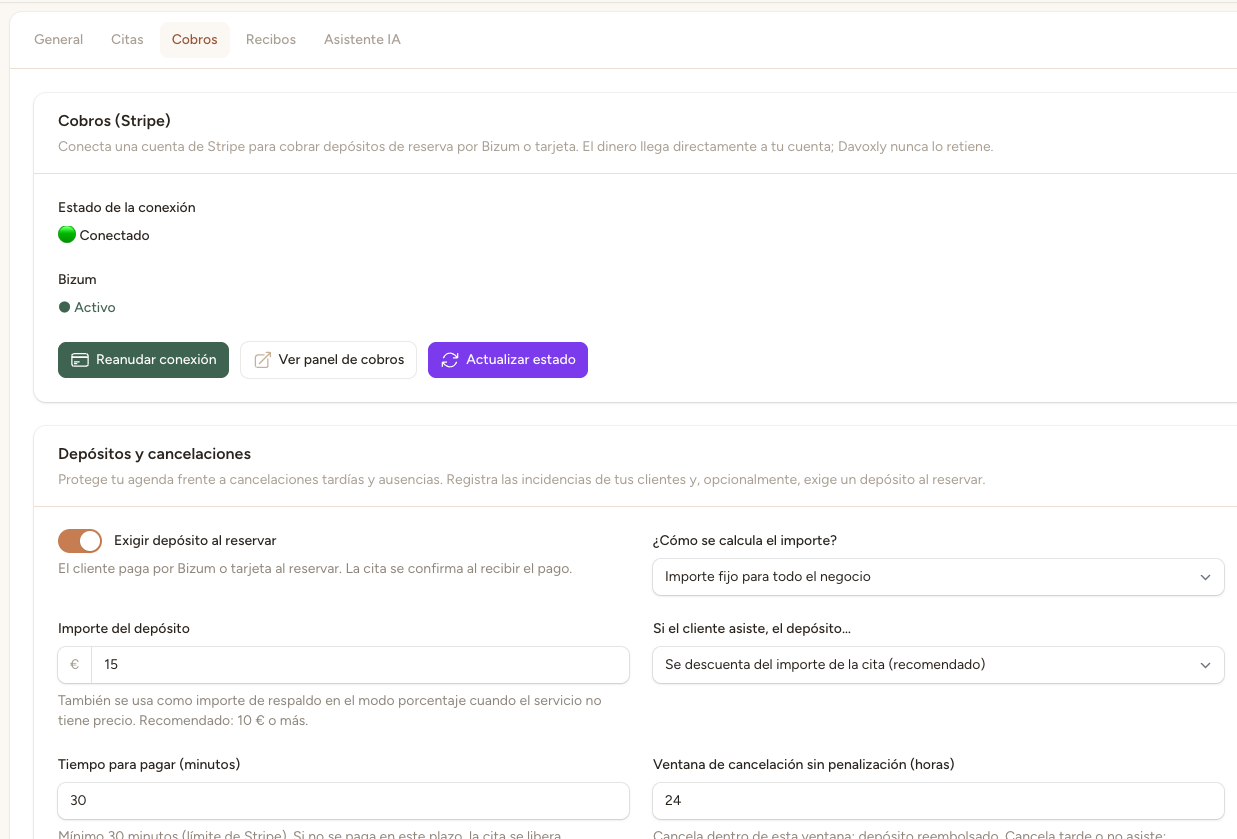
Enable the deposit
In the same tab you can enable the <strong>deposit at booking</strong> and choose whether it is a fixed amount or a percentage of the price. You also set the time window in hours for the automatic refund.
Prepayment and online balance
You can allow the client to pay the <strong>full amount up front</strong> or to settle the <strong>remaining balance online</strong> from the visit's payment link. Enable the options you want to offer.
Enable receipts
Enable <strong>receipts</strong> so you can generate the proof of payment when completing an appointment. You can add a custom footer text that will appear on all your receipts.
⚠️ Complete the Stripe onboarding
Don't enable online payments until you have completed the Stripe Connect onboarding. If the account isn't verified, clients won't be able to pay and deposits won't be charged.