Access the calendar
To open the calendar, click the "Calendar" option in the left sidebar menu of your clinic panel.
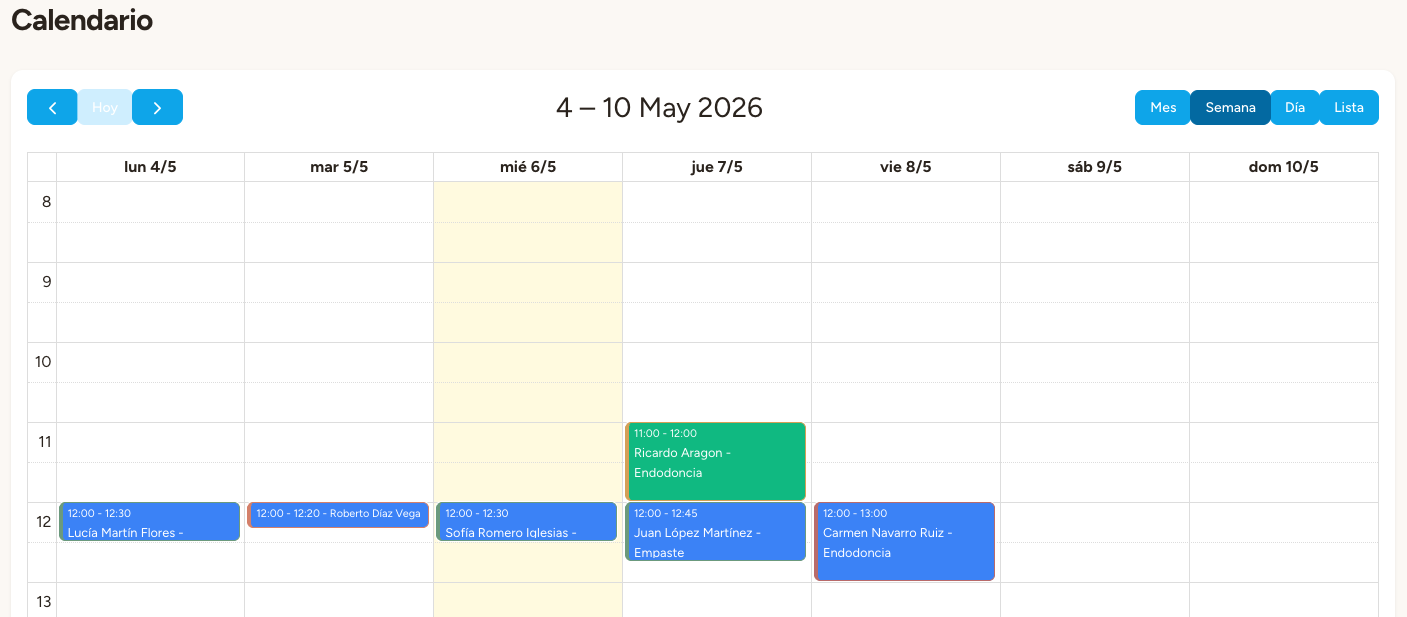
The calendar displays all your clinic's appointments organized by date and time, giving you a quick overview of the schedule.
Color coding
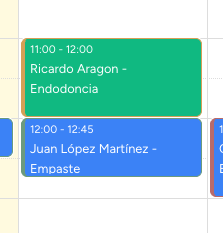
Each appointment on the calendar uses a color system so you can identify key information at a glance:
Background color: Corresponds to the color assigned to each professional. Each professional has a unique color so you can quickly identify who attends each appointment.
Border color: Indicates the appointment status:
• Blue — Confirmed
• Yellow — Pending
• Green — Completed
• Red — Cancelled
Navigate the calendar
Use the navigation arrows at the top of the calendar to move between weeks or months. You can switch between weekly and monthly views as needed.
If you click on a specific day, the calendar will show only the appointments for that day, letting you review the daily schedule in detail.
Tip
Press the "Today" button to quickly return to the current date from any point in the calendar.
View appointment details
To view the complete information of an appointment, simply click on the event in the calendar. The detail view will open where you can check:
Patient information (name and phone)
Assigned professional and service
Date and time of start and end
Current status of the appointment and additional notes